


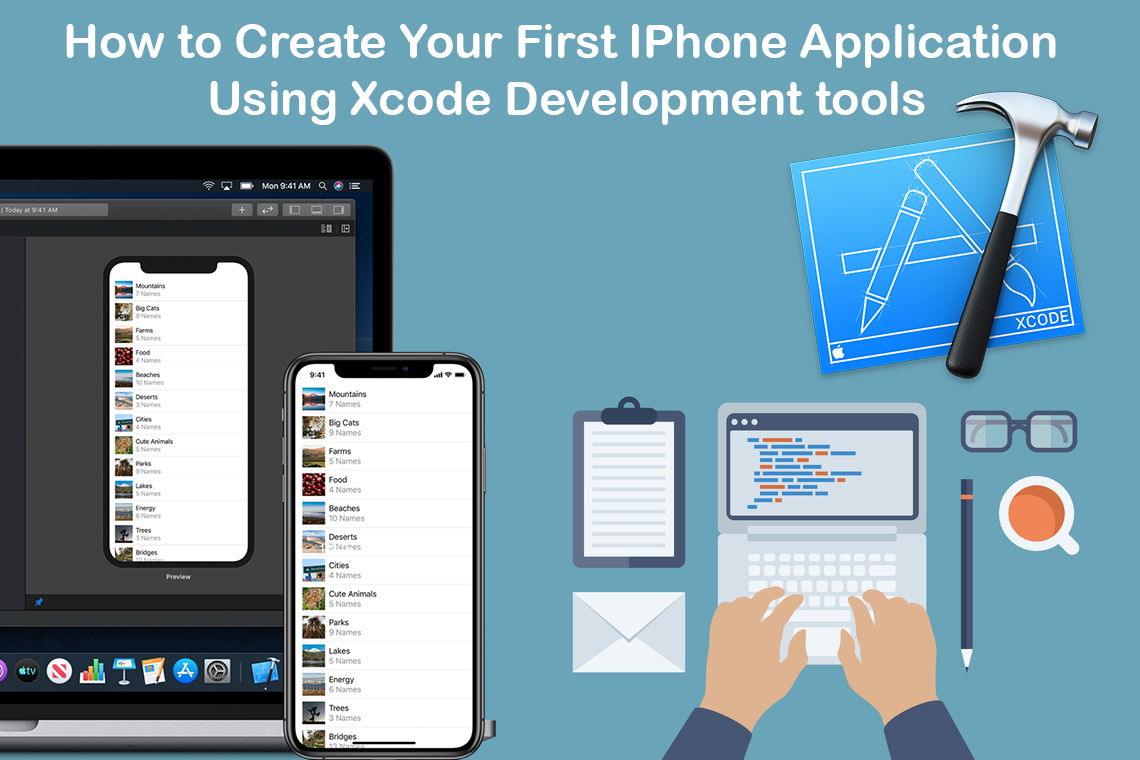
This sample demonstrates many of the typical behaviors of an iPhone application, including:
- Initializing the application
- Displaying a window
- Drawing custom content
- Handling touch events
- Performing animations
Objective-C defines a small but powerful set of extensions to the ANSI C programming language that enables sophisticated object-oriented programming. Objective-C is the native language for Cocoa programming—it’s the language that the frameworks are written in, and the language that most applications are written in. You can also use some other languages—such as Python and Ruby—to develop programs using the Cocoa frameworks. It’s useful, though, to have at least a basic understanding of Objective-C because Apple’s documentation and code samples are typically written in terms of this language.
Because Objective-C rests on a foundation of ANSI C, you can freely intermix straight C code with Objective-C code. Moreover, your code can call functions defined in non-Cocoa programmatic interfaces, such as the BSD library interfaces in /usr/include. You can even mix C++ code with your Cocoa code and link them into the same executable.
Apple provides a fantastic development tool – xCode development tool used to develop both Mac and iPhone applications.
Introduction
In this tutorial I will give you a brief introduction on how to get started with your first iPhone application. To begin you will need the latest version of the iPhone SDK which you can download it from http://developer.apple.com/iphone/index.action. With the SDK you get some development tools like Xcode(IN MAC OS), Interface Builder, iPhone simulator, and many more.
Purpose of the “Hello Universe” app
Using the app a user will be able to enter his/her full name and click a button to see a message appear. The message will say “John says Hello Universe!!!”. This app will not only introduce you to some of the tools but will also show you how to use controls, respond to events and create new views.
This is how the app will look like
Creating a new project
Launch Xcode and click on File -> New Project -> Select Application (under iPhone OS) -> select Window-Based Application project template and click on choose.
In the next screen you will be asked to save your project and give it a name. Xcode creates some files for us based on the name of the project, so you want to be careful with the name you provide. I have named my project “HelloUniverse”.
This is how the list of files look like in Xcode.
All the class files are stored under the “Classes” folder, some special files are listed under “Other Sources”, all the view files and resources show up under “Resources”, and any library or frameworks we add to our project are listed under the “Frameworks” folder. It is important that we save all the images, files, databases, and views in the “Resources” folder because all the iPhone apps run in its own sand box; which means they can only access files placed under the resources folder.
How the app is launched
Every C/C++/Java/C# programmer knows about the main method found in main.m file which is present under the “Other Sources” folder. You normally will never have to change this method and all we have to know is that this method is responsible in launching the app. The method applicationDidFinishLaunching method is called when the app is launched on the device or the simulator. The method is defined in “HelloUniverseAppDelegate.m” file which is found under the “Classes” folder.
Interface Builder
Using Interface Builder we can design our application by adding controls or creating additional views. The files that the Interface Builder creates gets saved with a .xib extension and are called nib files. Every project gets one nib file by called which is called “MainWindow.xib” which can be found under “Resources”. An iPhone application has only one window (MainWindow.xib) unlike a desktop application which is created with multiple windows; however, we can create multiple views which are added to the window. Double click on “MainWindow.xib” to launch the Interface Builder, which will open four windows and one of the window will look like this
The above picture shows the contents of the “MainWindow.xib” nib file. Every nib file has atleast two files; File’s Owner and First Responder which cannot be deleted. Every other objects apart from the first two, represents an instance of an object which gets created when the nib file loads. File’s Owner simply shows that it owns the object in the nib file. First Responder tells us which object are we currently interacting with; like the textbox, buttons… The third object which is special to the MainWindow.xib file is called “Hello Universe App Delegate” and this file represents “HelloUniverseAppDelegate” class. Last but not the least the view represents the object which we design in our apps.
Creating a new view
If we had created this project using “View-Based Application” project template then there would have been no need of creating another view from scratch, but where is the fun in that. In Interface Builder create a new view by clicking File -> New -> Select Cocoa Touch -> View and click on choose. Let’s save the view in the project folder by naming it “HelloUniverse” and once we do that IB (Interface Builder) will prompt us to add the view to the current project; click on “Add” and it will show up in Xcode. In Xcode and move your view to the Resources folder.
Creating a view controller
We have a view now let’s create a view controller to manage the view. In Xcode create a new view controller by selecting classes and clicking File -> New File -> Select Cocoa Touch Classes under iPhone OS -> select UIViewController -> click on choose and name your file “HelloUniverseController” without changing the extension. The newly created class inherits from UIViewController which knows how to interact with a view. Now that we have our view and the controller class, there must be some way to connect these two files and we can do it by setting the class property of the File’s Owner. Double click “HelloUniverse.xib” file in Xcode to launch Interface Builder and select File’s Owner -> select Tools -> Identity Inspector and under “Class Identity” category, change the class to “HelloUniverseController”. This is how the Class Identity should look like
Once that is done we need a way to control the view in the nib file from code and this is done by connecting the view instance variable to the view object in the nib. The connection is made using “outlets”. Select Tools -> Connections Inspector create a connection from the view variable to the view in the nib file. Move your mouse over the empty circle to see it change to a plus symbol indicating that a connection can be created. Click on circle and drag your mouse to the view in the nib file and release. As you do this you will see a blue line being created from the circle to the mouse. Once a connection is created, the connections inspector for File’s Owner will look like this
Let’s hook up the button click event to the “btnClickMe_Clicked” method. Select the button and under the Events list it seems that we do not have a button click event; however, we do have a “Touch Up Inside” event which is raised when the button is touched and released symbolizing a click. With the button selected click the circle next to “Touch Up Inside” and drag your mouse over to File’s Owner and release to have the method name show; simply click on the method name to create a connection.
Handling events
Let’s write some code in btnClickMe_Clicked event to read the first and last name and display a message in the label. This is how the code looks like
//HelloUniverseController.m
- (IBAction) btnClickMe_Clicked:(id)sender {
NSString *FirstName = txtFirstName.text;
NSString *LastName = txtLastName.text;
NSString *Message = nil;
if([FirstName length] == 0 && [LastName length] == 0)
Message = [[NSString alloc] initWithFormat:@"Anonymous says Hello Universe!!!"];
else if ([FirstName length] > 0 && [LastName length] ==0)
Message = [[NSString alloc] initWithFormat:@"%@ says Hello Universe", FirstName];
else if ([FirstName length] == 0 && [LastName length] == 0)
Message = [[NSString alloc] initWithFormat:@"%@ says Hello Universe", LastName];
else
Message = [[NSString alloc] initWithFormat:@"%@ %@ says Hello Universe", FirstName, LastName];
lblMessage.text = Message;
//Release the object
[Message release];
}
The method does few simple things, it finds out the first and last names and figures out what message to display in the label. We also create a temporary variable called “Message” to hold the message which will be displayed in the label. The variable is allocated and initialized by alloc and initWithFormat messages respectively. The variable is released in the end because when working with the iPhone we are responsible of cleaning up the memory. The easiest way to remember when to release objects is; if you create it then you own the object and hence you are responsible of releasing it.
If you click on Build and Go, the view will not be visible because we have not yet added it to the window. Let’s see how we can do that
Adding view to the window
Now we cannot drag the view and add it to the window, so we need another way to add the view as a sub view to the window. We already know that “HelloUniverseController” is the view controller of the view “HelloUniverse” and “HelloUniverseAppDelegate” is the application delegate where the window is made visible in applicationDidFinishLaunching method. It is in that method we will add the view as a sub view to the window. Before we do that, the application delegate (HelloUniverseAppDelegate) needs to know about our view controller. Add the following lines to HelloUniverseAppDelegate.h file to change the file like this
//HelloUniverseAppDelegate.h
@class HelloUniverseController;
@interface HelloUniverseAppDelegate : NSObject <UIApplicationDelegate> {
UIWindow *window;
HelloUniverseController *hvController;
}
@property (nonatomic, retain) IBOutlet UIWindow *window;
@property (nonatomic, retain) HelloUniverseController *hvController;
@end
From the above code we first add a forward class declaration of “HelloUniverseController” because we do not want any circular dependency when we import the header file of “HelloUniverseController” in HelloUniverseAppDelegate.m. A variable and a property of type HelloUniverseController is also declared. The property as you can see is declared with a couple of attributes called “retain” and “nonatomic”. The retain attribute will increase the reference count of the instance variable by one and nonatomic is used because our program is not multi-threaded.
A lot of first time users miss to synthesize the property we declared, so let’s do that now at the top of the HelloUniverseAppDelegate.m file and the code looks like this
//HelloUniverseAppDelegate.m
@implementation HelloUniverseAppDelegate
@synthesize window, hvController;
The view is added as a subview to the window in applicationDidFinishLaunching method and this is how the code looks like
//HelloUniverseAppDelegate.m
- (void)applicationDidFinishLaunching:(UIApplication *)application {
HelloUniverseController *hvc = [[HelloUniverseController alloc]
initWithNibName:@"HelloUniverse" bundle:[NSBundle mainBundle]];
self.hvController = hvc;
[hvc release];
[window addSubview:[self.hvController view]];
// Override point for customization after application launch
[window makeKeyAndVisible];
}
The second line shows that we imported the header file of “HelloUniverseController” and we also synthesized the property hvController. In the “olden” days in order to create a property we had to create getter and setter methods which would be something like getHVController and setHVController. The synthesize keyword automatically generates these methods for us. In applicationDidFinishLaunching method we allocate and initialize a temporary variable, assign it to our property, release it, and the view associated with the view controller is added as a sub view to the window. The key thing to remember here is that the view message is passed to the “hvController” which returns the view and is added as sub view to the window. A valid view is returned because we created a connection from the view instance variable to the view in the nib file. The property is finally released in the dealloc method as shown below
//HelloUniverseAppDelegate.m
- (void)dealloc {
[hvController release];
[window release];
[super dealloc];
}
We have always allocated and initialized variables in one single line as seen below, this is usually the accepted way but the same code can be written in a different way as seen below
HelloUniverseController *hvc = [HelloUniverseController alloc];

hvc = [hvc initWithNibName:@"HelloUniverse" bundle:[NSBundle mainBundle]];
Build and go to test your application.
Hiding the keyboard
Wait a minute clicking the “Done” button doesn’t do anything. Ideally we would like to hide the keyboard when the “Done” button is clicked no matter which text box we are currently editing. To hide the keyboard we need to do two things; set the delegate of the keyboard to File’s Owner and implement a method called textFieldShouldReturn in HelloUniverseController.m file. To set the delegate, open Interface Builder by double clicking HelloUniverse.xib, select the first text box and click on Tools -> Connections Inspector. Click and drag your mouse by selecting the empty circle next to delegate under “Outlets” and release your mouse over to File’s Owner. Assign the delegate for the next text box in the same manner.
The method textFieldShouldReturn gets called when the “Done” button is clicked and this is how the code looks like
//HelloUniverseController.m
– (BOOL)textFieldShouldReturn:(UITextField *)theTextField {
[theTextField resignFirstResponder];
return YES;
}
The method gets a parameter called sender, which is the object that triggered the event. We will use the same object to which we send the resignResponder message, which will hide the keyboard on the textbox. The boolean “Yes” is returned to tell the sender that the first responder is resigned.
